Showing posts with label පරිගණක. Show all posts

Wednesday, February 1, 2017

ඔබගේ අත්අකුරු පවා පරිගණකය සොරා ගෙන ඇති බව ඔබ දන්නේද?

පරිගණකය ආශ්‍රයෙන් අද කොතරම් ලියකියවිලි සකස් කෙරුනත් අත් අකුරුවලින් ලියනා ලිපි ලේඛන වල ඇති ජීවභාවය සොරාගන්නට තවම හැකිව නැතිබව මා බොහොවිට දැක තිබෙන අතර ඔබට යම් හිතෛශියෙකු එවනා ලිපියක් එම අය අත් අකුරින් එවනා තරම් හෘදයාංගම බවක් පැහැදිලි ලස්සන පරිගණක මෘද්‍රිත පිටපතක් ලෙස එවූවත් නොදැනෙනු ඇති.

එහෙත් අත් අකුරින් ලියනා දෙය පවා දැන් පරිගණක හා සම්බන්ධ රොබෝ අතකින්ද කරනා අයුරු මේ වීඩියෝවේ දැක්වේ. වෙනකක් තබා අත්සන පවා මෙමගින් යෙදිය හැකිවීම අනාගතයේ බොහෝ තීරණාත්මක දේවලට කෙබඳු බලපෑමක් ඇතිකරයිද?


Friday, October 7, 2016

ගතවූ වසර කිහිපයේම වසරේ හොදම Uninstall මෘදුකාංගය ලෙස තේරුනේ මෙම මෘදුකාංගයයි...

මේ කියන්නට යන මෘදුකංගය තමයි වසර කිහිපයක්ම වසරේ හොදම මෘදුකාංගය ලෙස තේරුනේ. විවිද සඟරා සහ මෘදුකාංග පිළිබදව සන්සන්දනයන් කරනා සමාගම් විසින් පැවැත්වූ සමීක්‍ෂන‍් පර්යේෂන ආදියෙන් පසුව තමයි එය පවසා තිබුනේ. කෙසේනමුත් මෙම සඟරා හෝ ආයතන විසින් කියු පමණින් අපගේ භාවිතයන්ට අංක එක දිනුවත් ඇතැම් මෘදුකාංග කියන තරම් හරියන්නේ නැති අවස්ථා තිබෙනවා. මමත් ප්‍රායෝගිකව එවැනි අවස්ථාවන්ට මුහුණදීලත් තිබෙනවා.

කොහොමනමුත් Revo Uninstall මෘදුකාංගය තමන් දිනූ පළමු ස්ථානයට උචිත ආකාරයටම ක්‍රියාකරන මෘදුකාංගයක් බව දැන් කලක සිටන් භාවිතා කරන නිසා මමද අත්දැකීමෙන් දනිමි.

ඔබටත් අවශ්‍ය නම් මෙන්න මේ සබැඳියෙන් නොමිලේ ලබා දෙන සංස්කරණය භාගත කරගෙන අත්හදා බැලිය හැකිය.
http://www.revouninstaller.com/

අද දිනයේ ලියූ අනෙකුත් ලිපි මේවාය -
දත් බෙහෙත්. දත් බුරුසු සහ මදුරු දඟර
සතුන් සමග සිදුවූ අසාමාන්‍ය විවාහ
වාහනයේ රේඩියේටරය, ඔයිල් ෆිල්ටරය, එයාර් ෆිල්ටරය හදන හැටි

Thursday, October 6, 2016

දෘඩ තැටියේ අස්ථාන ගතවූ ගොනු නැවත ස්ථාපනයට Recuva,;;

ගොඩක් කාලෙකට පස්සේ පරිගණක සම්බන්ධයෙනුත් කුඩා ලිපියක් ලියන්නට සිතුනා. අද මේ කියන්න යන්නේ Hard Disk එකේ කුමක් හෝ හේතුවක් නිසා අස්ථානගතවූ File නැවත Recovery කර ගන්න පුළුවන් මෘදුකාංගයක් ගැනයි. මාතෘකාවේ තියෙන හැටියටම මේ මෘදුකාංගයේ නම Recuva.


මෙන්න මේ අඩවිය තමයි ඔවුන්ගේ නිල වෙබ් අඩවිය. එහිදී අවශ්‍ය නම් නොමිලේ ලබා දෙන පිටපත ලබා ගැනීමට හෝ වඩාත් පහසුකම් තිබෙන Pro සංස්කරණයට මිලට ගැනීමේ හැකියවත් ලබා දි තිබෙනවා. මමත් කිහිපවිටක්ම මේ මෘදුකංගය භාවිතා කළා. සෑහෙන්න හොද ප්‍රතිඵලත් ලබා ගත්තා.
https://www.piriform.com/recuva

මීට කලින් අද මේ ලිපි 3 ත් ලියුවා - ගෙදර දොරට දාන ඉබ්බා හැදුව හැටි
                                                      කතා කරන පින්තූර ලිපිය 
                                                      ස්මාර්ට් නොවන ජංගම දුරකථන හැදුව හැටි

Sunday, June 28, 2015

Offline ලෙස .Net Framework 3.5 (includes net 2.0 and 3.0) ස්ථාපනය කරගන්නේ මෙලෙසයි....

ඔබ මේ කාලවකවානුවේ වැඩිපුර භාවිතා කරන Windows 8 හෝ 8.1 සංස්කරණ වලදී ඇතැම් මෘදුකාංග පිහිටුවීමට යෑමේදී මේ අවශ්‍යතාව එම මෘදුකාංගය පිහිටුවීමට අවශ්‍යයයි තිරයේ දිස්වී තිබේද?

එසේනම් බොහෝවිට ඔබට අන්තර්ජාල පහසුකමද තිබේනම් සුලබව කරනු ලබන්නට ඇත්තේ Install this Feature තේරීම ඔස්සේ එම  .Net Framework 3.5 (includes net 2.0 and 3.0) ස්ථාපනය කරන්නට යෑමයි. එහෙත් ඒ සදහා වැයවන කාලය මෙන්ම අන්තර්ජාල පහසුකම් සේවා සපයන ආයතනය ලබාදී තිබෙන සීමිත දත්ත ප්‍රමාණයද වැයකරමින් සිදුකරන කාර්යයට වඩා පහසුවෙන් Offline ලෙස .Net Framework 3.5 ස්ථාපනය කර ගන්නා අයුරු පවසා සිටින්නම්.

මුලින්ම ඔබ සතුව ඇති Windows 8 පරිගණකයේ පිහිටුවීමට යොදාගත් DVD එක ධාවකයට ඇතුළු කරන්න. ඉන්පසුව එම ධාවකයට අදාල drive letter එක Computer හිදී ඔබට දැකගත හැකිය. එය පසුවට අවශ්‍ය වේ.

දැන් Command Prompt Windows එකක් Run As Administrator ලෙසට ලබා ගන්න. 

ඉන්පසුව මෙම විධානය එහි Command Prompt හරහා ක්‍රියාත්මක කළ යුතු අතර මෙහි E: ලෙසට දැක්වෙන Drive Letter එක වෙනුවට ඔබගේ පරිගණකයේදී පෙරකී ලෙස ලැබෙන Drive Letter එක භාවිතා කළ යුතුවේ.

Dism.exe /online /enable-feature /featurename:NetFX3 /All /Source:E:\sources\sxs /LimitAccess

ඉන්පසුව අදාල ස්ථාපනය සිදුවන ආකාරය ඔබට දැකගත හැකිවන අතර අවසානයේ සාර්ථක ලෙස එය ස්ථාපනය වූ බවද තිරයේ දිස්වනු ඇති. තවදුරටත් එය තහවුරු කර ගැනීමට අවශ්‍ය නම් Control Panel හි Program and Features හි Turn Windows Features on or off හිදී අදාල .Net Framework 3.5 (includes net 2.0 and 3.0) ස්ථානය සක්‍රීය වී ඇති ආකාරය දැකගත හැකිවනු ඇත.

Wednesday, March 25, 2015

Offline බ්ලොග් ලිපි ලියන්නට Windows Live Writer

අද මේ කියන්නට යන්නේ අපගේ පරිගණකයේ internet නොමැතිවුවත් Offline ලෙස බ්ලොග් ලිපි ලියා පසුව පළ කරන්නට Microsoft සමාගම විසින් නොමිලේ ලබාදී  ඇති මෘදුකාංගයක් පිළිබදවයි.

Windows Essential නම් මෘදුකාංග සමූහය සමග පැමිණෙන මෙම මෘදුකංගය Windows Live Writer නම් වනවා. මෙන්න මේ සබැඳියෙන් පුළුවන් එය Offline  ලෙසටම ඔබගේ පරිගණකය වෙතට ලබා ගන්නට.

http://windows.microsoft.com/en-us/windows-live/essentials-install-offline-faq


Tuesday, September 9, 2014

Windows වලදී ඇතිවන ඇතැම් දෝශ පටිගත කරගැනීම...

Windows භාවිතයේදී පැන නගින කුඩා දෝශ එනම් Boot නොවීම වගේ ලොකු දෝශ නොවන ඒවා ඔබට නිරාකරණය කරගැනීමට නොහැකි වන අවස්ථාවල ඒ පිළිබදව ප්‍රවීනයෙකුගේ සහය බලාපොරොත්තුවන අවස්ථාවල දෝශය කුමක්දැයි නිවැරදිවම ඔහුට පැවසීමට ඇතැම් විට ඔබ අපොහොසත් වන අවස්ථා තිබෙන්නට පුළුවන්. සමහරවිට එම දෝශ පිළිබදව ඔහුට පෙන්වන අවස්ථාවේ පරිගණකයේ ඇති නොවීම නිසා හරිහැටි පිළියමක් යෙදීමට නොහැකිවන අවස්ථාත් තිබෙන්නට පුළුවන්. 

මේ වගේ අපහසුතා අවම කිරීමට Windows 7 සංස්කරණයේ සිට "Problem Steps Recorder" නම් වූ මෘදුකාංගයක් ඇතුලත් කොට තිබෙනවා. දෝශය ඇතිවන අවස්ථවේ මෙම මෘදුකාංගය ක්‍රියාත්මක කර දෝශය ඇතිවන ආකාරය සහ එයින් අත්වන ප්‍රතිඵලය පටිගත කර ගැනීම සහ එය අදාල දෝශ නිවාරකයාට යොමු කිරීම තුලින් ඔහුට දෝශය සදහා නිසි ප්‍රතිකර්මය යෙදීමට පහසුවනවා ඇති. 

මෙන්න මෙහෙමයි එම මෘදුකාංගය ක්‍රියාත්මක කරවා ගන්නේ Windows 7 තුලදී RUN Window එක තුලදී PSR යන විධානය ලබාදීමෙන් හෝ Command Prompt තුලදී PSR ලෙස විධානය ලබාදීමෙන් අදාල මෘදුකාංගය ක්‍රියාත්මක වනු ඇති. එසේම Windows 8 තුලදීද දෙවන ක්‍රමයටම මෘදුකාංගය ක්‍රියාත්මක කළ හැකි අතර Start Menu තුලදීද PSR විධානය ලබාදීමෙන් මෘදුකාංගය ක්‍රියාත්මක කළ හැක. 

මෙසේ විධානයන් කුමන හෝ ආකාරයට ලබාදුන් විට මෙසේ මෘදුකාංගය ක්‍රියාත්මකව තිබෙනු ඇති අතර එහිදී Start Record කොටස Click කිරීමෙන් අදාල දෝශය හෝ ඔබ කරනා ක්‍රියාකාරකම් පටිගත වීම ඇරඹෙනු ඇත. 


මෙසේ මෘදුකාංගය ක්‍රියාත්මක කළ පසුව අවශ්‍ය වුවහොත් එහි Pause Record කොටස තේරීම මගින් ඔබ කරනා ක්‍රියාකාරකම් තාවකාලිකව පටිගත කිරීම නවතා දැමීම හෝ Stop Record මගින් පටිගත කිරීම එම අවස්ථාව වන තෙක් පමණක් සිදුකිරීමට මෙන්ම අවශ්‍ය අවස්ථාවල ඔබට ‍දෝශය පිළිබදව හෝ ක්‍රියාකාරකම පිළිබදව වැඩි දුර විස්තර සටහන් කර ගැනීමට Add Comment කොටසද උපකාරී වනු ඇත.

Tuesday, August 26, 2014

Windows 8/8.1 වලදී Automatic Repair නවතා ගන්නේ කෙසේද?

Windows 8 හෝ 8.1 වලදී අනපේක්‍ෂිත අයුරින් යථාපරිදි Windows ආරම්භ නොවී Automatic Repair ස්ථානයට නොනවත්වා රැගෙන යන තත්ත්වයක් සමහරවිට ඔබත් මේ වනවිට අත්විද ඇති එසේත් නැතහොත් අනාගතයේදී ඔබටත් එම අත්දැකීම අත්විදින්නට හැකියාව ලැබෙන්නට ඉඩතිබේවි. ඉතින් දැන් ඔබට හිතේවි Repair ස්ව්‍යංක්‍රීයව නැත‍හොත් Automatic ලෙසම සිදුවෙනවානම් වැරැද්ද මොකක්ද කියලා. මේක Automatic කිව්වට ඉන්පසුව ලැබෙන Options වන Refresh  සහ Restore වලදී මෙම මුහුණත් ලැබුනහොත් ඉන් ඉදිරියට මෙම දෝශය නිවැරදි කරගැනීම ගැටළුවක් වනු නිසැකයි.


මෙන්න මෙහෙමයි මේ දෝශය නිවැරදි කරගන්නේ. මුලින්ම ඔබ මෙම දෝශය පැනනැගුණ පරිගණකයට Windows ස්ථාපනය කළ DVD එකත් ඔබ සතුව තිබීම වැදගත් වන අතර අවශ්‍ය අවස්ථාවේදී DVD Writer තුලට අැතුළු කරන්න.

දැන් Boot වන අවස්ථාවේදී ඔබ භාවිතා කරන Keyboard Language එක පිිළිබදව විමසනු අැති අතර එය ඔබගේ භාවිතය පරිදි select කර Next කරන්න.

ඉන්පසුව ලැබෙන මුහුණතේදී "Repair your Computer" තෝරන්න.

ඉන්පසුව ලැබෙන මුහුණතේදී "Troubleshoot" තෝරන්න.

ඉන්පසුව "Advanced Options" තෝරන්න.

අවසානයේදී "Command Prompt" තෝරන්න.

දැන් අනුපිළිවලින් මෙම විධානයන් type කර Enter කරන්න.

bootrec /fixmbr
bootrec /fixboot
bootrec /RebuildBcd

ඉන්පසුව ස්වල්ප‍ වේලාවක්  විනඥාස ගතකිරීම සදහා ගත කිරීමෙන් අනතුරුව ඔබගේ පරිගණකයේ ඇති කුමන Windows ස්ථාපනයක් අදාල ක්‍රියාකාරීත්වය සදහා සකස් කළ යුතු දැයි විමසමින් අසන අවස්ථාවේ එක් Windows ස්ථාපනයකට වඩා වැඩි අවස්ථාවක නම් දැක්වෙන අංකය සටහන් කර Yes සදහා Y අකුර යොදා ගත යුතු අතර එක් ස්ථාපනයක් පමණක් නම් Y අකුර පමණක් යොදා Enter කළ යුතුය.

අවසාන වශයෙන් Command Prompt අවස්ථාවෙන් ඉවත්වීමට Exit යන්න Type කර Enter කරන්න.

ඉන්පසුව පරගණකය Reboot කරවීමට අවශ්‍ය මුහුණත කරා ඔබව රැගෙන ගිය පසුව Reboot වූ පසුව Automatic Repair වීම වෙනුවට යථා පරිදි පරිගණකය Boot වීම සිදුවිය යුතුවේ.

Thursday, September 26, 2013

පෙර ලිපියෙන් පැවසූ දෝෂ නිර්ණය හා නිවාරණයන් මෙම ලිපියෙන් වඩාත් පැහැදිලිව දැනගැනීමට හැකියාව ලැබේවි....

කලින් ලිපියේ පැවසූ Device Manager, Device Status හි Code 30 ක් දක්වා පැවසූ දෝෂයන්ට අමතරම තවත් Code 20 කට ආසන්න සංඛ්‍යාවකට අදාල දෝෂයන්  මෙන්ම ඒවා නිවාරණයට අනුගමනය කළ හැකි පියවරයන් පෙර ලිපියටක් වඩා පහසුවෙන් අවබෝධ කර ගැනීමේ හැකියාව මෙම ලිපියෙන් ගෙන ඒමට බලා පොරොත්තු වන අතර මුලින්ම වගුවේ පිළියම් සහ ඒවාට අදාල වන කෙටි සංකේතයක්ද ලබා දෙන අතර දෙවන වගුවේදී අදාල Code සහ එයට අදාල වන දෝශය සහ මුල් වගුවෙන් දැක්වූ එයට පිළියම හෝ පිළියම් අදාල කෙටි සංකේතයද දක්වන අතර එයින් පෙර ලිපියටත් වඩා පහසුවෙන් මෙම දෝශයන් හා එයට සිදුකළ හැකි පිළියම් අවබෝද කර ගත හැකි වෙතැයි සිතමි.


එසේම Microsoft ආයතනයේ මෙම වෙබ් ලිපිනයේද මෙයටම සමාන තොරතුරු තිබෙන බව පැවසිය යුතුය.
http://support.microsoft.com/kb/310123

Wednesday, September 25, 2013

Windows වල Device Manager හි Device Status පෙන්වන Code වලින් කියවෙනා දේ...

ඔබ Windows භාවිතා කරන්නෙක් නම් ඔබ විසින් පරිගණකයට ඈදා ඇති දෘඩාංගයක drivers හරි හැටි ස්ථාපනය කර නොමැති නම් හෝ දැනටමත් භාවිතා කරමින් පවතිද්දීත් කිසියම් හේතුවක් නිසා එම drivers වල Conflict වීමක් සිදුව ඇත්නම් සාමාන්‍යෙන් දිස්වනවාට වඩා එම උපාංගය ඉදිරියේ කිසියම් අයිඛනයක් දිස්වෙමින් යම් දෝෂයක් තිබෙන බවක් පෙන්වනු දැක ඇති.

උදාහරණයක් ලෙස Device Manager වෙත ගියවිට එහි කිසියම් උපාංගයක් මත රතුපාට කතිර සලකුණ (X) ඇති නම් disabled තත්ත්වයේ පවතින් අතර එම අයිඛනය සුදුපාට පසුබිමක් මත “!“ සලකුණ දිස්වේ නම් එය දෝශ සහගත සළකුනක් ලෙස නොසලකන අතර එය එම උපාංගයේ Settings Automatic වෙනුවට Manual Settings ලෙස සකස් ව ඇති බව දක්වන බව පැවසේ. මේ දැක්වූ අයිකන වලින් දෝෂයකට වඩා එම උපාංගය ක්‍රියාත්මක වීමේ ක්‍රමවේදයන් හෝ ක්‍රියාත්මක නොකර සිටීම දක්වන නිසා දෝෂ ලෙස සැලකීම අනවශ්‍ය අතර යම් හෙයකින් අයිඛනය කහපාට පසුබිමක “!“ සලකුණ මතුකර දක්වයි නම් විවිධාකාර දෝෂ තත්ත්වයන් නිසා එය එසේ සලකුණුව ඇති බව සලකා අදලා දෝෂයට පිළියම යෙදිය යුතුවේ. 

මෙහිදී එම උපාංගය මත Double click කර විට දිස්වන General Tab එකෙහි Device Status හිදී අදාළ උපාංගය මුහුණපා ඇති දෝෂය සමග පෙන්වන Code වලින් කියවෙනාදේ බොහෝවිට අප නොසලකා හරින මුත් එයින් ප්‍රයෝජනවත් පණිවිඩයක් ලබා දෙන බව අප අමතක කළ යුතු නොවේ.

මෙන්න එම Code වලින් කියවෙනා දේ -

Code 1 This code means the system has not had a chance to configure the device. To resolve this error code, use Device Manager to remove the device and then run the Add New Hardware tool in Control Panel.

Code 2 This code means the device loader (DevLoader) failed to load a device. To resolve this error code, use Device Manager to remove the device and then run the Add New Hardware tool in Control Panel.

Code 3 This code means the system has run out of memory. To resolve this error code, use Device Manager to remove the device and then run the Add New Hardware tool in Control Panel.

Code 4 This code means the .inf file for this device is incorrect. For example, the .inf file specifies a field that should be text, but is binary instead. To resolve this error code, use Device Manager to remove the device and then run the Add New Hardware tool in Control Panel. If you continue to receive this error code, please contact the hardware's manufacturer for an updated .inf file.

Code 5 This code means there was a device failure due to the lack of an arbitrator. If a device requests a resource type for which there is no arbitrator, you receive this error code. To resolve this error code, use Device Manager to remove the device and then run the Add New Hardware tool in Control Panel.

Code 6 This code means there is a conflict between this device and another device. To resolve this error code, see the "Troubleshooting Conflicting Hardware" topic in Windows 95 Help, or see the following article in the Microsoft Knowledge Base:

Code 7 This code means that no configuration can be performed on the device. If the device works correctly, you do need not to perform any steps to correct the code. If the device does not work correctly, use Device Manager to remove the device and then run the Add New Hardware tool in Control Panel. If you continue to receive this error code and the device does not function properly, check with the hardware's manufacturer or the Microsoft Software Library for an updated driver.

Code 8 This code means the device loader (DevLoader) for a device could not be found. For example, the .inf file for the device may refer to a missing or invalid file. To resolve this error code, use Device Manager to remove the device and then run the Add New Hardware tool in Control Panel. If you continue to receive this error code, contact the hardware's manufacturer about an updated .inf file.

Code 9 This code means that the information in the registry for this device is invalid. To resolve this error code, use Device Manager to remove the device and then run the Add New Hardware tool in Control Panel. If you continue to receive this error code, contact the hardware's manufacturer for the proper registry settings.

Code 10 This code means that the device failed to start (for example, it is missing or is not working properly). To resolve this error code, make sure the device is attached to the computer correctly. For example, make sure all cables are plugged in fully and that all adapter cards are plugged into their slots fully.

Code 11 This code means that the device failed. To resolve this error code, use Device Manager to remove the device and then run the Add New Hardware tool in Control Panel.

Code 12 This code means one of the resource arbitrators failed. This can occur if the device is software configurable and it does not currently have a resource, if the system is out of resources (for example, all the interrupts are in use), or if the device requests a resource and that resource is currently in use by another device that will not release the resource. To resolve this error code, see the "Troubleshooting Conflicting Hardware" topic in Windows 95 Help, or see the following article in the Microsoft Knowledge Base:

Code 13 This code means the device failed due to a problem in the device driver. To resolve this error code, use Device Manager to remove the device and then run the Add New Hardware tool in Control Panel.

Code 14 This code means the device has a problem that may be resolved by restarting your computer. To resolve this error code, shut down Windows 95, turn off your computer, and then turn it back on.

Code 15 This code means the device's resources are conflicting with another device's resources. To resolve this error code, see the "Troubleshooting Conflicting Hardware" topic in Windows 95 Help, or see the following article in the Microsoft Knowledge Base:

Code 16 This code means the device was not fully detected. When a device is not fully detected, all of its resources may not be recorded. To resolve this error code, click the Resources tab in the device's properties to manually enter the settings.

Code 17 This code means the device is a multiple-function device and the .inf file for the device is providing invalid information on how to split the device's resources to the child devices. To resolve this error code, use Device Manager to remove the device and then run the Add New Hardware tool in Control Panel. If you continue to receive this error code, please contact the hardware's manufacturer about an updated .inf file.

Code 18 This code means that an error has occurred and the device needs to be reinstalled. To resolve this error code, use Device Manager to remove the device and then run the Add New Hardware tool in Control Panel.

Code 19 This code means the registry returned an unknown result. To resolve this error code, use Device Manager to remove the device and then run the Add New Hardware tool in Control Panel.

Code 20 This code means VxD Loader (Vxdldr) returned an unknown result. For example, there could a version mismatch between the device driver and the operating system. To resolve this error code, use Device Manager to remove the device and then run the Add New Hardware tool in Control Panel.

Code 21 This code means the device has a problem that may be resolved by restarting your computer. To resolve this error code, shut down Windows 95, turn off your computer, and then turn it back on.

Code 22 This code means the device is disabled.

To resolve this error code, enable the device. To do so, follow these steps:

1.In Control Panel, double-click System.

2.Click the Device Manager tab.

3.Double-click the category for the device you want to enable, and then double-click the device.

4.In the Device Usage box, click the check box for the configuration in which you want to enable the device. For example, click the Original Configuration (Current) check box to select it.

5.Click OK, and then click Close.

6.Shut down and restart your computer.

Code 23 This code means the device loader delayed the start of a device and then failed to inform Windows 95 when it was ready to start the device. To resolve this error code, use Device Manager to remove the device and then run the Add New Hardware tool in Control Panel.

Code 24 This code means that the device was not found (for example, it is missing or is not working properly). To resolve this error code, make sure the device is attached to your computer correctly. For example, make sure all cables are plugged in fully and that all adapter cards are plugged into their slots fully.

Code 25 This code occurs only during the first reboot in Windows 95 Setup and is not visible. No resolution is necessary.

Code 26 This code means a device failed to load or that there may be a problem in the device driver (for example, the file may be damaged).

To resolve this error code, use Device Manager to remove the device and then run the Add New Hardware tool in Control Panel. If you continue to receive this error code, check with the hardware's manufacturer or the Microsoft Software Library for an updated driver.

Code 27 This code means the portion of the registry describing possible resources for a device does not contain valid entries. For example, the device is marked as configurable, but the configuration information in the .inf file is set to hardwired.

To resolve this error code, use Device Manager to remove the device and then run the Add New Hardware tool in Control Panel.

Code 28 This code means the device was not installed completely.

To resolve this error code, click the Driver tab in the device's properties and then click Change Driver to update the driver.

Code 29 This code means the device has been disabled because the device does not work properly and cannot be made to work properly with Windows 95.

You may be able to resolve this error code by enabling or disabling the device in the computer's CMOS settings. Windows 95 cannot override this setting. Please contact the computer's manufacturer for assistance with using the computer's CMOS setup program.

Code 30 This code means that an IRQ cannot be shared. This may occur when a PCI/EISA SCSI controller is sharing an IRQ that is also in use by a real- mode device driver that Windows 95 does not take over.

To resolve this error code, remove the real-mode driver that is using the same IRQ as this device. The real-mode driver may be loading in the Config.sys or Autoexec.bat file.

ඔබටත් කිසියම් අවස්ථාවක මෙසේ පැවසූ දෝෂයක් ඇති වුවහොත් මෙම කේතයන් සසදා බැලීමෙන් එම දෝශය නිවාරණය කර ගැනීමට ඇති හැකියාවන් පිළිබදව යම් අදහසක් ලබා ගැනීමට හැකි වෙතැයි සිතමි...

Tuesday, September 17, 2013

Virus වලින් සැඟවූ files නැවත ලබා ගන්නේ මෙහෙමයි...

මේ කියන්න යන කාරණය මම නම් කිහිපවිටකදීම සිදුකර දෙන්න වුන දෙයක් ගැනයි. ඒ තමයි වෛරස් වලින් සැඟවූ USB pen වල ඇති files නැවත ලබාදීම. ඒ කියන්නේ ඇතැම් වෛරස් වලින් හානි සිදුවුනාට පස්සේ ඒ වෛරස් ඉවත් කළත් තමන්ගේ USB pen එකේ තිබුන files වලින් බොහෝමයක් නැවත පෙන්වන්නේ නැත කියන කාරණය නිසා ඒවා  නැවත ලබාදීමට කටයුතු කිරීමට සිදුවීම. මේක බොහොම සරලව කරන ක්‍රමයක් තමයි මේ කියන්න යන්නේ.

වෛරස් වලින් මෙම  files, hidden තත්ත්වයට පත්කරනවාට අමතරව ඒවා System files බවටත් පත් කරන නිසා  hidden තත්ත්වය පමණක් ඉවත් කළාට මේ කාර්යය සම්පූරණ වෙන්නේ නැහැ. ඒ නිසා System files බවෙන් ඉවත් කරනවාට අමතරව read only කියන attribute එකත් ඉවත් කිරීම අවශ්‍ය වෙනවා.

මේ සදහා ආකාර දෙකකට මේ විධානයන් දෙන සැටි කියන්නම්. පළමු ක්‍රමය තමයි Command Prompt කවුළුව Run as administrator ලෙස විවෘත කර ගන්න.

දැන් ඔබ මේ විධානය දෙන්න.

                           attrib -s -h -r q:\*.* /s /d

මෙහිදි ඔබගේ USB pen එකට හිමිව තිබෙන Driver letter එක මෙහි Q ලෙස සටහන්ව ඇති ස්ථානයට Q වෙනුවට දෙන්නත් අමතක කරන්න එපා.

යම් හෙයකින් ඉදිරි අවස්ථාවකදීත් කිහිපවිටක්ම මේ විධානය භාවිතා කරන්න අවශ්‍ය වෙනවා කියන අදහස තිබෙනම් හොදම දේ තමයි එය batch file එකකට අරගෙන එය Run as administrator ලෙස ක්‍රියාත්මක කරවීම එය කරන්නේ මෙලෙසයි. මෙන්න මේ විධානයන් සමූහය Notepad file එකකට paste කර ගන්න.

@echo off
set /p drive= Please enter the target drive letter
if "%drive%"=="" (
echo Program aborted.
echo.
pause
goto :eof
)
attrib -s -h "%drive%\*.*"
echo successfully recoverd
echo.
pause

දැන් ඔබ මේ file එක save කිරීමේදී File හිදී Save as තෝරා එහිදී  Save as type හිදී all files යන්න තේරීම සිදු කළ යුතු අතර file name එක සදහා ඔබ කැමති නමක් ලබාදී එහි අගට .bat ලෙස දෙන්නටත් වග බලා ගන්න.

යම් අවස්ථාවක මෙම ගොනුව ක්‍රියාත්මක කිරීමේදී එය right click කර run as administrator ලෙස ක්‍රියාත්මක කිරීම වඩාත් සුදුසුය. එසේම මෙහිදීද ප්‍රථමයෙන් ඔබට අවශ්‍ය Drive එකෙහි letter එක දීමට අවස්ථාව ලබා දෙන අතර එහිදී drive letter එක මෙලෙස ලබා දෙන්න උදාහරණය ලෙස drive letter එක G ලෙස ලබා දීමට G: ලෙස ලබා දෙන්න. එපමණයි.....


Thursday, September 12, 2013

පින්තූර මුර පද යෙදීම...

මුර පද නැත්නම් password කියන්නේ පරිගණක භාවිතයේදී ඉතා සංවේදීම මාතෘකාවක්. මෙම මුරපද ආරක්‍ෂනය වෙනුවෙන් දැන් දැන් යෙදෙන උපක්‍රම අනුව කොයිමොහොතේ මුරපද අනතුරකට ලක්වෙනවාද කියන එක ගැන තිබෙන සැකය අමුතුවෙන් කිව යුතු නැහැ. ඉතින් සාම්ප්‍රධායිකව යෙදෙන අකුරු හෝ ඉලක්කම් හෝ යතුරු පුවරුවේ අනෙකුත් සංකේතයන් වෙනුවට කැමති පින්තූරයක අපවිසින් සලකුණු කරන සරළ රේඛා, වෘත්ත හෝ කිසියම් ස්ථානයක් සලකුණු කිරීමෙන් මුරපදයක් සැකසිය හැකි ආකාරයක් Windows 8 වලදී හදුන්වාදී තිබෙනවා.
මේ සදහා Windows 8 Charms bar හිදී More PC Settings  තෝරන්න,

 
දැන් Users හිදී Picture password තෝරන්න,
ඉක්බිති වර්ථමානයේ ඔබ භාවිතා කරන මුරපදය
යෙදිය යුතු අතර ඉන්පසු කැමති පින්තූරයක් තේරීමේ අවස්ථාව සලසා දෙන අතර තෝරාගන්නා පින්තූරයේ mouse එක හෝ Touch screen පහසුකම් තිබේනම් Finger Taps මගින් සරළ රේඛා, වෘත්ත හෝ කිසියම් ස්ථානයක් සලකුණු කිරීමෙන් මුරපදයක් සැකසිය හැකි අතර අවස්ථා සම්බන්ධයන් තුනක් මෙහිදී ලබා දෙයි. සැලකිය යුතු වන්නේ එකම ආකාරයකට නොවන වෙනස් සම්බන්ධතාවයන් තුනක් සලකුනු කිරීමයි.

 
ඊලඟ වතාවේදී පරිගණකයට පිවිසීමේදී Picture password ලෙස තේරීමෙන් ඔබට ඒ ආකාරයට පරිගණකයට පිවිසීමේ අවස්ථාව උදා කර ගත හැකිය.


Monday, September 9, 2013

ඔබගේ දත්ත ආරක්‍ෂාකර ගැනීමට Windows 8 ලබා දී ඇති පහසුකමක් පිළිබදවයි

ඔබගේ Thumb drive එකෙහි හෝ ඔබ භාවිතා කරන පරිගනකයේ දත්ත වෙනත් අයගෙන් ආරක්‍ෂා කර ගැනීමට අවශ්‍යද? මීට පෙර ඔබ මේ කාර්යය සදහා වෙනත් තෙවන පාර්ශවයේ මෘදුකාංග යොදා ගෙන තිබේද? දැන් ඔබ භාවිතා කරන්නේ Windows 8 නම් එවැනි බාහිර මෘදුකාංග භාවිතයකින් තොරව එම කාර්යය කරගැනීමේ පහසුකම ලබා දී තිබෙනවා. ඒ Windows 8 හිදී BitLocker පහසුකම ඔස්සේයි. මෙහිදී ඔබ යොදගන්නා මාධ්‍ය Encrypt කිරීම සිදුකරනු ලබයි.

මෙය සිදු කරගැනීම අරඹන්නේ මෙලෙසයි. ඔබට අවශ්‍ය Thumb drive එක සම්බන්ධ කොට Control Panel වෙතට ගොස් BitLocker තෝරන්න. එවිට මෙම අතුරුමුහුනත ඔබට දිස්වනු ඇත.

සාමාන්‍යන් මෙහිදී BitLocker Turn off වී තිබෙන අතර සිදුකළ යුත්තේ අදාල drive එකේදී (උදා : ලෙස මෙහිදී Thumb drive) දී  “Turn on BitLocker” තේරීමයි.

දැන් ඔබට තේරීම් දෙකකින් එකක් සිදුකිරීමට අවස්ථාව උදාවී ඇත. එනම් අදාල drive එකට පිවිසීමේ අවසරය සදහා smart card පහසුකම් යොදා ගැනීම හෝ මුර පදයක් (password ) එකක් යොදා ගැනීමයි .බොහෝවිට ඔබට පළමු කී smart card පහසුකම සතු නොවනු ඇති නිසා දෙවන තොරාගැනීම වූ  “Use a password to unlock the drive.” යන්න තෝරා අදාල පිළිවිතරයන්ට අදාලව මුර පදයක් යොදා එය නැවත වරක් යොදා සනාථ කළ යුතුවනු ඇත.

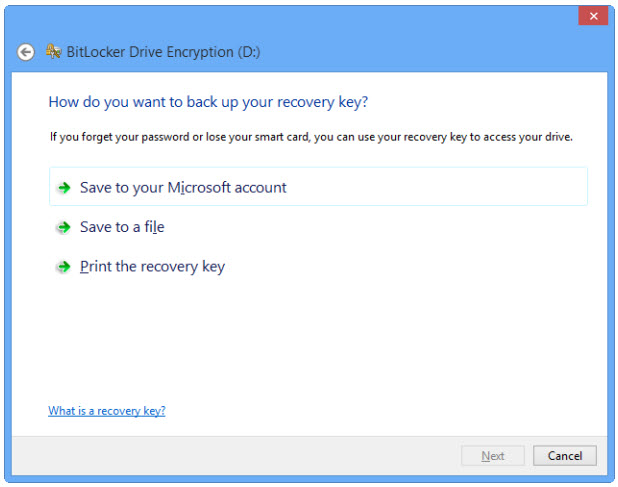
දැන් සිදු කිරීමට ඇත්තේ වැදගත්ම පියවරකි. එනම් ඔබ තැනූ මුරපදයට අදාලව ස්ව්‍යංක්‍රීයව තැනෙන Recovery key එක txt file එකකට හෝ එය මුද්‍රණය කර ගැනීම හෝ ඔබ සතුව Microsoft account එකක් ඇත්නම් එහි රැදවීමයි. යම් හෙයකින් ඔබට මුර පදය අමතකව ගිය හොත් මෙම Recovery key එක යොදා ගෙන අදාල drive එක තුලට පිවිසීමට මෙමගින් අවස්ථාව සලසා දෙයි.

දැන් අවසාන වශයෙන් එළඹ ඇත්තේ මෙම Encrypt කිරීම මේ වන විට දත්ත පවතින මාධ්‍යකට හෝ දත්ත නැති මාධ්‍යකට සිදුකරන දෙආයාකරයයි. මෙහිදී දත්ත කිසිවක් නොපවතී නම් “Encrypt used disk space only” යන්න තෝරා ගැනීම සුදුසු අතර දැනටමත් දත්ත පවතී නම් මන්දගාමී වුවත් වඩාත් ආරක්‍ෂිත  “Encrypt entire drive” යන්න තෝරා ගැනීම වඩාත් ප්‍රඥාගෝචරය.

තවද මෙම කටයුතු අවසන් වූ පසුව මෙම පණිවිඩය දිස්වනු තුරු ඔබ විසින් අදාල Thumb drive එක පරිගණකයෙන් ගැලවීමට යා නොයුතු අතර එසේ කළ හොත් ඔබගේ Thumb drive එකට හානි සිදුවූම වැලැක්වීමටද නොහැකිවනු ඇත.

දැන් ඔබ මෙම  Thumb drive එක Windows 8 පමණක් නොව වෙනත් Windows සංස්කරණයක් ඇති පරිගණකයකට සම්බන්ධ කළ විටද මුරපදය අසනු ඇති අතර යම් හෙයකින් මුරපදය ඔබේ සිතෙන් අස්ථාන ගත ව ඇත්නම් More options හරහා මුරපදය වෙනුවට පෙර කී Recovery key එක යොදා ගෙන අදාල drive එක තුලට පිවිසීමට මෙමගින් අවස්ථාව සලසාගත හැකිය.

එසේම යම් හෙයකින් ඔබට මෙම BitLocker පහසුකම අදාල මාධ්‍යයට තවදුරටත් අනවශ්‍ය නම් එම මාධ්‍ය Windows 8 හෝ Windows 7 Ultimate හෝ Enterprise සංස්කරණ ඇති පරිගණකයකදී Turn off BitLocker තෝරාගැනීම මගින් සිදු කළ හැකි බව ලිපිය අවසන් කරමින් පවසමි.

(මෙම පහසුකම් Windows 8 Pro සහ Enterprise සංස්කරණවලදී මෙන්ම Windows 7 Ultimate හෝ Enterprise සංස්කරණ වලදීද ලබා ගත හැකි බව සටහන් කරමි.)

Tuesday, August 27, 2013

තවත් රහස් කිහිපයක්ම...

තවත් DOS රහස් කිහිපයක්ම අදත් ඔබට ගෙන එනවා. ඔබට Command Prompt එකෙහි ලබා දෙන විධානයන් වල ප්‍රතිඵලය කිසියම් ගොනුවකට ලබා ගත් යුතු නම්, එසේත් නැතහොත් කිසියම් කාර්යයක් සදහා එම තොරතුරු භාවිතා කිරීමට txt file එකකට ලබා ගැනීමට ක්‍රම කිහිපයක්ම DOS මෙහෙයුම් පද්දතියේ තිබෙනවා. එයින් ප්‍රචලිතම ක්‍රමය තමයි ලැබෙන ප්‍රතිඵලය Properties හරහා Mark කර අදාල ගොනුවට paste කර ගැනීම.
 

මේ එයට වඩා එක් වෙනස් ක්‍රමයක් ඒ තමයි අදාල විධානය clipboard එකට copy වීමට සලසා අවශ්‍ය ගොනුවට paste කර ගැනීම. මෙය පහසුවෙන්ම කර ගන්නේ මෙලෙසයි උදාහරණයක් ලෙස ipconfig command එක භාවිතා කරන්නම්.

හැබැයි මෙහිදී අදාල ප්‍රතිඵලය Command prompt window එක තුල ක්‍රියාත්මකව පෙන්වන්නේ නැහැ.

ඒ වගේම තවත් ක්‍රමයක් තිබෙනවා මෙම කාර්යය කර ගැනීමට ඒ තමයි එක් වරම txt file එකකට අදාල ප්‍රතිඵලය ලබා ගැනීම මෙන්න එය කරන අයුරු නිදසුනකින්ම.

මෙහිදී අප විසින් txt file එක සාදනවා වෙනුවට එම විධානයෙන්ම එය සාදා ගන්නා අතර එම ගොනුව සකසන ස්ථානයේ එයට අදාලව security settings සකස් කිරීමටද වග බලා ගත යුතුයි.

ඔබට මතකද කිසියම් folder එකක් Right click කර එහිදී Command Prompt එක ලබා ගැනීමට context menu එක Regedit හරහා සාදා ගැනීමට ඇති හැකියාව පිළිබදව කලින් ලිපියෙන් දැනුවත් කළා.

ඇත්තෙන්ම අවශ්‍ය නම් එසේ නොකර ඔබට අවශ්‍ය අවස්ථාවල පමණක් context menu එකට Command Prompt ලබා ගැනීමට කළ යුත්තේ යම් folder එකක් Right click කරන විට Shift button එකද යතුරු පුවරුවේ Press කිරීමයි.

DOS වලදී ඔබට Folder රැසක් ඇතුලත ඇති තවත් Folder එකකට යන්නට ඒ හැම නමක්ම CD විධානය සමග type කරන්නට වෙනවා නේද? ඒත් Explorer හරහා අදාල Folder එක ඇති ස්ථානයට ගොස් එම Folder CD විධානයට පසුව Drag කර රැගෙන ඒමෙන් කිසිදු type කිරීමකින් තොරව අදලා Folder එකහි ගමන් මාර්ගය ලබා දිය හැකිය.

Command Prompt එක ඉදිරියේ එක් වරකට ක්‍රියාත්මක කළ හැක්කේ එක් DOS Command එකක් පමණක්ද? නැහැ, අවශ්‍ය නම් Command කිහිපයක් වූවත් එක්වර ක්‍රියාත්මක කළ හැකියි. කළ යුත්තේ ඒ ඒ Command එකට පසුට “ampersands“ දෙකක් මෙම උදාහරණයේ දැක්වෙන ලෙස එකතු කිරීමයි.

තවත් දෙයක් තමයි ඔබ මීට පෙර දුන් Command  නැවත නැවත ලබා දිය යුතු නම් ඒවා නැවතත් Type කිරීමකින් තොරව අවශ්‍ය Command එක තෝරා ගෙන ලබා දීමටද හැකියාව F7 Key එක භාවිතා කිරීමෙන් හැකියාව ඇත.

අදට මෙපමණයි...

Friday, August 23, 2013

මේ commands ඔබට කවදා හෝ වැදගත් වේවි...

අපි අද කාලයේ භාවිතා කරන Windows සංස්කරණවලදී බොහෝමයක් කාර්යයන් Double click කර ගැනීමෙන් ඉතා පහසුවෙන් කර ගත හැකිවූවත් යම් හෙයකින් එයට බාදාවක් සිදුවුවහොත් සාමාන්‍ය Command prompt එක හරහාද එම කාර්යයන් කර ගත හැකි විධානයන් ඔබට ලබා දෙන්නම්. 

1. Accessibility Controls - access.cpl
2. Accessibility Wizard - accwiz
3. Add Hardware Wizard - hdwwiz.cpl
4. Add/Remove Programs - appwiz.cpl
5. Administrative Tools - control admintools
6. Automatic Updates - wuaucpl.cpl
7. Bluetooth Transfer Wizard - fsquirt
8. Calculator - calc
9. Certificate Manager - certmgr.msc
10. Character Map - charmap
11. Check Disk Utility - chkdsk
12. Clipboard Viewer - clipbrd
13. Command Prompt - cmd
14. Component Services - dcomcnfg
15. Computer Management - compmgmt.msc
16. Control Panel - control
17. Date and Time Properties - timedate.cpl
18. DDE Shares - ddeshare
19. Device Manager - devmgmt.msc
20. Direct X Troubleshooter - dxdiag
21. Disk Cleanup Utility - cleanmgr
22. Disk Defragment - dfrg.msc
23. Disk Management - diskmgmt.msc
24. Disk Partition Manager - diskpart
25. Display Properties - control desktop
26. Display Properties - desk.cpl
27. Dr. Watson System Troubleshooting Utility - drwtsn32
28. Driver Verifier Utility - verifier
29. Event Viewer - eventvwr.msc
30. Files and Settings Transfer Tool - migwiz
31. File Signature Verification Tool - sigverif
32. Findfast - findfast.cpl
33. Firefox - firefox
34. Folders Properties - control folders
35. Fonts - control fonts
36. Fonts Folder - fonts
37. Free Cell Card Game - freecell
38. Game Controllers - joy.cpl
39. Group Policy Editor (for xp professional) - gpedit.msc
40. Hearts Card Game - mshearts
41. Help and Support - helpctr
42. HyperTerminal - hypertrm
43. Iexpress Wizard - iexpress
44. Indexing Service - ciadv.msc
45. Internet Connection Wizard - icwconn1
46. Internet Explorer - iexplore
47. Internet Properties - inetcpl.cpl
48. Keyboard Properties - control keyboard
49. Local Security Settings - secpol.msc
50. Local Users and Groups - lusrmgr.msc
51. Logs You Out Of Windows - logoff
52. Malicious Software Removal Tool - mrt
53. Microsoft Chat - winchat
54. Microsoft Movie Maker - moviemk
55. Microsoft Paint - mspaint
56. Microsoft Syncronization Tool - mobsync
57. Minesweeper Game - winmine
58. Mouse Properties - control mouse
59. Mouse Properties - main.cpl
60. Netmeeting - conf
61. Network Connections - control netconnections
62. Network Connections - ncpa.cpl
63. Network Setup Wizard - netsetup.cpl
64. Notepad - notepad
65. Object Packager - packager
66. ODBC Data Source Administrator - odbccp32.cpl
67. On Screen Keyboard - osk
68. Outlook Express - msimn
69. Paint - pbrush
70. Password Properties - password.cpl
71. Performance Monitor - perfmon.msc
72. Performance Monitor - perfmon
73. Phone and Modem Options - telephon.cpl
74. Phone Dialer - dialer
75. Pinball Game - pinball
76. Power Configuration - powercfg.cpl
77. Printers and Faxes - control printers
78. Printers Folder - printers
79. Regional Settings - intl.cpl
80. Registry Editor - regedit
81. Registry Editor - regedit32
82. Remote Access Phonebook - rasphone
83. Remote Desktop - mstsc
84. Removable Storage - ntmsmgr.msc
85. Removable Storage Operator Requests - ntmsoprq.msc
86. Resultant Set of Policy (for xp professional) - rsop.msc
87. Scanners and Cameras - sticpl.cpl
88. Scheduled Tasks - control schedtasks
89. Security Center - wscui.cpl
90. Services - services.msc
91. Shared Folders - fsmgmt.msc
92. Shuts Down Windows - shutdown
93. Sounds and Audio - mmsys.cpl
94. Spider Solitare Card Game - spider
95. SQL Client Configuration - cliconfg
96. System Configuration Editor - sysedit
97. System Configuration Utility - msconfig
98. System Information - msinfo32
99. System Properties - sysdm.cpl
100. Task Manager - taskmgr
101. TCP Tester - tcptest
102. Telnet Client - telnet
103. User Account Management - nusrmgr.cpl
104. Utility Manager - utilman
105. Windows Address Book - wab
106. Windows Address Book Import Utility - wabmig
107. Windows Explorer - explorer.


Thursday, August 22, 2013

ඕනෑම Windows සංස්කරණයකට ප්‍රයෝජනවත් පහුසකම් කිහිපයක් ලේසියෙන්ම කර ගන්නා ආකාරය...

අද කියන්නට යන මේ ඉඟි ඔබ කවර Windows සංස්කරණයක්භාවිතා කළත් ප්‍රයෝජනවත් වේවි. මේ කාර්යයන් බොහෝමයක් කරගන්නට තිබෙන්නේ Windows මෙහෙයුම් පද්දතියේ වැදගත්ම කොටසක් වන Registry Editor හරහා වූවත් ඔබට ඒ බැරෑරුම් කටයුත්ත සිදු නොකර එක් එක් File ක්‍රියාත්මක කර ගනිමින් පමණක් ඉටුකරගන්නා ආකාරය දක්වන්නම්. මෙහිදී පොදුවේ කිව යුත්තේ මේ සෑම වෙන් වෙන් වශයෙන් දක්වන  කේතයක්ම Notepad වෙත paste කර කැමති File name එකක් භාවිතා කරමින් එහෙත් ඒ සෑම file එකක් සදහාම Extension එක ලෙස .reg ලෙස (උදහරණයක් ලෙස Copy To.reg) ලෙස save කර ගැනීම සිදු කළ යුතුයි.

ඔබ දැනටම Windows 8 සදහා හුරු වී ඇත්නම් මේ දක්වන ක්‍රම බොහෝමයක් එහි File Explorer හි Ribbon හරහාම වුවත් කර ගත හැකිවුවත් ඔබ හොදින් පුහුණුව ඇත්තේ Right click  කිරීමෙන් ලැබෙන Context Menu හරහා කර ගැනීමට නම් එම Menu ට මෙම විධාන එකතු කර ගැනීමේ අවස්ථාව මෙමගින් සැලසේවි.

ඔබ File, Copy සහ Move කර ගන්නා අවස්ථාවල අනුගමනය කරනා පියවරයන් අඩු කර ගැනීමට Context Menu ට  Copy To සහ Move To යන විධානයන් තිබුනොත් පහසුවක් වේවි. මෙයට අදාල කේතයන් ඇතුලත් කර ගත යුතුවන්නේ Registry editor ට වූවත් එයට අතනොතබා මෙම කේතයන් Notepad file එකකට paste කර කැමති File name එකකින්, එහෙත් .reg Extension එක යටතේ save කර ගෑනීමෙන් හැකිය. අවශ්‍ය නම් Copy To සහ Move To යන විධානයන් සදහා වෙන වෙනම ගොනු සැකසිය හැකි වූවත් වඩාත් පහසුව සදහා එක ගොනුවක එම විධානයන් දෙකම ඇතුලත් කර ගොනුව මෙලෙස සාදා ගත හැකිය.

මෙන්න එම කේතය :
Windows Registry Editor Version 5.00
[HKEY_CLASSES_ROOT\AllFilesystemObjects\shellex\ContextMenuHandlers\Copy To]
@="{C2FBB630-2971-11d1-A18C-00C04FD75D13}"
[HKEY_CLASSES_ROOT\AllFilesystemObjects\shellex\ContextMenuHandlers\Move To]
@="{C2FBB631-2971-11d1-A18C-00C04FD75D13}"
  

 ඔබ Dos මෙහෙයුම් පද්දතියට කැමැත්තෙන් සිටින්නෙක් නම් හෝ යම් Folder ක් වෙත පියවරයන් අඩුවෙන්ම පිවිසීමට අවශ්‍යතාවයක් දකවන්නේ නම් හොදම විසදුම Context Menu සදහා Open Command Prompt කොටස එක් කර ගැනීමයි. එයට මෙම කේතය භාවිතා කිරීමට පුළුවන්.

Windows Registry Editor Version 5.00
[HKEY_LOCAL_MACHINE\Software\Classes\Folder\Shell\Command Prompt]
@=”Open Command Prompt”
[HKEY_LOCAL_MACHINE\Software\Classes\Folder\Shell\Command Prompt\Command]
@="Cmd.exe /k pushd %L"

එසේම ඔබට Context Menu සදහා Administrator ලෙස Command Prompt විවෘත කර ගැනීමට අවශ්‍යතාව සලසා ගැනීමට නම් මෙම කේතය භාවිතා කළ හැකිය.

Windows Registry Editor Version 5.00
[HKEY_CLASSES_ROOT\Directory\shell\runas]
@="Open Administrator Command Prompt Here"
"NoWorkingDirectory"=""
[HKEY_CLASSES_ROOT\Directory\shell\runas\command]
@="cmd.exe /k \"pushd %L && title Command Prompt\""
[HKEY_CLASSES_ROOT\Drive\shell\runas]
@="Open Administrator Command Prompt Here"
"NoWorkingDirectory"=""
[HKEY_CLASSES_ROOT\Drive\shell\runas\command]
@="cmd.exe /k \"pushd %L && title Command Prompt\""

Wednesday, August 21, 2013

ආරම්භක මෙනුවට, මගේ පරිගණකයට සහ ප්‍රතිෂ්ඨාපණය කර ඇති සියළුම මෘදුකාංග වලට පිවිසුමක්...

දැනට ලබාදී ඇති Windows 8 පද්දතියේ පිටතින් නොපෙනන ලෙස දක්වා ඇති My Computer සහ තවත් ස්ථාන කිහිපයක් සදහා ලේසියෙන්ම කෙටි මං සාදා ගන්නා ආකාරය මෙම ලිපියෙන් ඔබට ගෙන එන්නට බලාපොරොත්තුවෙනවා.

මුලින්ම Windows 8 පද්දතියේ Desktop එකෙහි දක්නට නොලැබෙන My Computer හෙවත් Explorer මෙනුවට Shortcut එකක් තනා ගන්නා ආකාරය දක්වන්නම්. මේ සදහා Shortcut location අවස්ථාවේදී C:\Windows\explorer.exe explorer.exe /root,,::{20D04FE0-3AEA-1069-A2D8-
08002B30309D} කේතය ලබා දෙන්න.

එසේම Windows 8 පද්දතිට ප්‍රතිෂ්ඨාපනය කර ඇති සියළුම මෘදුකාංග සහ අනෙකුත් පාලක මෙවලම් ආදිය දැක ගැනීමට අවශ්‍යනම් පෙර කී ලෙසම පියවර අනුගමනය කර Shortcut location අවස්ථාවේදීApplications.{4234d49b-0245-4df3-b780-3893943456e1} කේතය ලබා දෙන්න.

Windows 8 වලදී Start Button එකක් දක්නට නොලැබෙන අතර පරිගණක තිරයේ වම් පස පහලට mouse curser රැගෙන ගියවිට ලැබෙන හෝ පරිගණකය පණ ගන්වා Lock screen එකට පසු දක්නට ලැබෙන අතුරුමුහුනත Start නැතහොත් Metro ලෙස හදුන්වනවා. මෙම අතුරුමුහුනතට mouse curser පරිගණක තිරයේ දකුණු පස කෙළවරට රැගෙන ගිය විටද ලැබෙන Charms Menu හරහාද පිවිසිය හැකි මුත් ඔබට අවශ්‍ය නම් Desktop එකෙහි මේ සදහාද Shortcut එකක් සාදා ගත හැකියි. හැබැයි මෙම Shortcut එක පෙරකී Shortcut සාදා ගන්නාවාට වඩා වෙනස් ආකාරයකට තමයි සාදා ගැනීමට සිදුවන්නේ. මෙන්න ඒ පියවරයන්.

Desktop එකෙහි Text file එකක් create කර ගැනීම හෝ Notepad වීවෘත කර එම file එකට Start යන නමත් එහි Extension එක ලෙස vbs ලෙසත් සදා ගත යුතුය. කෙටියෙන් පවසනවා නම් මෙලෙස විය යුතුය - Star.vbs

දැන් එම file එකට මෙන්න මේ කේතයන් අලවා ගන්න.
Set objShell = CreateObject ("WScript.Shell")
objShell.SendKeys "^{ESC}"


දැන් අදාල ගොනුව save කර එය ක්‍රියාත්මක කළ විට  Start interface ට පිවිසෙන අයුරු දැක ගත හැකිය.

තවත් වැදගත් දෙයක් තමයි මේ කියන්න යන්නේ.  Windows 8 වලදී Start button එකක් හරහා අප ස්ථාපනය කර ඇති Software ක්‍රියාත්මක කිරීමේ අවස්ථාව නැතත් එවැන්නක් සාදා ගැනීමේ හැකියාවද පවතිනවා. මෙලෙසයි එය කළ යුත්තේ ප්‍රථමයෙන්ම Folder option වෙත ගොස් View tab එකේදී Show hidden files යන්න තෝරන්න.

ඉන්පසු Taskbar එකේදී right click කර Toolbar හරහා New Toolbar තෝරන්න. ඉන්පසු මේ පියවරයන් අනුගමනය කරන්න. Local Disk (C:) - Program Data - Microsoft - Windows - Start Menu - Programs ඉන්පසු Select Drive යන්න තෝරන්න. එවිට Taskbar එකෙහි Programs ලෙස නම් වූ නම් Toolbar එකක් නිර්මාණය වී තිබෙන දකිනු ඇති.

Friday, August 16, 2013

Windows 8 ඇති පරිගණකයක එම මෙහෙයුම් පද්දතිය ගැටළු ගෙන දෙන්නේ නම් ඔබගේ දත්ත backup කිරීමකින් තොරව හා Format කිරීමකින්ද තොරව ලේසියෙන්ම නැවත මෙහෙයුම් පද්දතිය ප්‍රතිෂ්ඨාපනය කර ගන්නේ මෙලෙසයි...

මේ කියන්න යන්නේ Windows 8 වලදී හදුන්වා දුන් අලුත් පහසුකමක් සම්බන්ධයෙනුයි. කාලයාගේ ඇවෑමෙන් ඕනෑම මෙහෙයුම් පද්දතියක් විවිද අඩපණ වීම් හෝ නොයෙකුත් අබාදයන්ට ලක්ව නැවත එම මෙහෙයුම් පද්දතිය පිහිටුවා ගැනීමට සිදුවන බව ඔබ අත්දැකීමෙන් දන්නවා ඇති. එවැනි අවස්ථාවලදී ඔබගේ සියළු දත්ත වෙනත් මාධ්‍යක් වෙත Backup කිරීමක් සිදුකර එම Partition එක Format කර ඒ කාර්යය සිදු කර ගැනිමට සිදුවන බව අමුතුවෙන් කිව යුතු නැහැ.

ඒත් Windows 8 වලදී හදුන්වා දුන් මෙම අලුත් පහසුකම නිසා එසේ කරදර අත්විදීමකින් තොරව සහ ඔබගේ දත්ත ඒ අයුරින්ම සුරක්‍ෂිතව තිබියදී නැවත Windows reinstall කර ගැනීම ඉතා අඩුකාලයකදී හැකියාව ලැබෙනවා. මෙය හදුන්වන්නේ Refresh නමින්. මෙහිදී අහිමි වන ප්‍රධානම දෙය නම් ඔබ විසින් Windows 8 වලදී ලබාදුන් Apps වලට අමතරව යම් Apps ප්‍රතිෂ්ඨාපනය කර ඇත්නම ඒවා පමණයි. ඒවා පවා රැක ගනිමින් මෙම ක්‍රියාදාමය සිදුකරගැනීමට හැකියාව ඇතත් මෙම ලිපියෙන් එම පියවරයන් අනුගමනය නොකර සාමාන්‍ය Refresh ක්‍රියාවලිය පමණක් දක්වන අතර පසුව ලිපියකින් එම කාර්යයද කර ගැනීමට ඇති ක්‍රමය පවසන්නම්.

මෙම Refresh ක්‍රියාවලිය සිදුකරගන්නේ මේ ආකාරයෙනුයි. Windows Charms bar හිදී Settings තෝරන්න.

එහිදී Change PC settings යන්න තෝරා එහදී General තෝරා තරමක් පහලට Scroll කරනා විට “Refresh your PC without affecting your files” යන්න ඔබට දැක ගැනීමට ලැබෙනවා ඇති.

ඉන්පසු අදලා පියවරයන් අනුගමනය කිරීමෙන් පසුව මෙම Refresh ක්‍රියාවලිය කර ගත හැකිය.

Wednesday, August 14, 2013

වේගවත් ආරම්භය සහ වේගවත් අවසානය

මීට පෙර Windows සංස්කරණ වලට වඩා මෙවර හදුන්වාදුන් Windows 8 සංස්කරණයේදී වේගවත් ලෙස Boot වීම වගේම වේගයෙන් Shutdown වීම ඔබට දැක ගන්නට ලැබී ඇති. එයට හේතුව තමයි Windows 8 වලදී Hybrid Boot සහ Hybrid Shutdown කියන විශේෂාංගයන් ඇතුලත් කර තිබීම.

මොකක්ද මේ Hybrid Boot සහ Hybrid Shutdown කියන්නේ? ඔබ මේ වනවිටත් භාවිතා කර ඇති අනෙකුත්  Windows සංස්කරණවලදී Hibernate කියන පහසුකම අත්විද තිබෙනවා නේද? එහිදී ඔබ යමක් කරමින් සිටියදී Shutdown නොකර Hibernate කළා නම් නැවත පරිගණකය පණ ගැන්වීමේදී අර අවසන් වශයෙන් විවෘත කර ගෙන සිටි වැඩසටහන් සහ ගොනු ඒ ආකරයෙන්ම භාවිතා කිරීමට හැකියාව ලැබෙනවා. හැබැයි Hybrid Boot සහ Hybrid Shutdown වලදී එයට තරමක් සමාන තත්ත්වයක් තිබුනත් මුළුමනින්ම එයට සමාන නැහැ.

මේ පිළිබදව තාක්‍ෂනිකව පැහැදිලි කරනවා නම්, ඔබ හෝ මම පරිගණකය භාවිතා කරන විට එහි sessions කිහිපයක් ගොඩනැගෙනවා. එයින් session 0 යන්න kernel session වෙනුවෙනුත්, session 1 යන්න user session වෙනුවෙනුත් වෙන්ව පවතිනවාත මෙහදී මෙම kernel session යනුවෙන් හැදින්වෙන්නේ සරලව ගතහොත් මෙහෙයුම් පද්දතිය විසින් ආරම්භ කරනා සහ පවත්වාගෙන යන විධිවිධාන හා සේවාවන් ලෙස හැදින්විය හැකි අතර user session ලෙස හැදින්වෙන්නේ අප විසින් අරඹන වැඩසටහන් යනාදිය ලෙස වුවත් සරලව පැවසිය හැකියි. මෙහිදී hibernation කිරීමේදී මෙම මෙම session දෙකටම අදාල RAM එකෙහි පවත් නා දත්ත hiberfil.sys කියන ගොනුවට ලියවීම සිදුවෙනවා.

අනෙක් විදියට කියනවා නම් ඔබ නැවත පරිගණකය පණ ගැන්වීමේදී  මෙහදී  hiberfil.sys ගොනුවේ අන්තර්ගතව තිබෙන kernel session සහ user session යන session දෙකම නැවත RAM එකට ප්‍රතිශ්ඨාපනය වීම සිදුවෙනවා. Hybrid Boot සහ Hybrid Shutdown තුලදීත් මෙයට සමානම දෙයක් සිදුවෙනවා. ඒත් එහිදී hiberfil.sys ගොනුව තුල ලියවෙන්නේ kernel session අවස්ථාව පමණයි. සෑම පණ ගැන්වීමකදීම මේ නිසා නව user session එකක් තමයි ඇතිවෙන්නේ.

මේ නිසා තමයි Windows 8 වලදී වේගවත් පණ ගැන්වීමක් වගේම වේගවත් අවසානයක් සිදුවෙන්නේ. හැබැයි. මේ අවස්ථාව ඔබට ලැබෙන්නේ එහිදී Shutdown කිරීමදී පමණක් වන අතර Restart කළ හොත් Full Shutdown වීම සිදුවීම සිදුවී hiberfil.sys ගොනුව ලියවීම සිදුවෙන්නේ නැහැ.

ඒ වගේම Shutdown කරන අවස්ථාවේදීත් Full Shutdown කිරීම ඔබට කර ගැනීමට අවශ්‍යනම් Shutdown කරන අවස්ථාවේ Shift key එකත් press කර ගෙන සිටීමෙන් ඉටුකර ගත හැකියි. එහෙමත් නැත්නම් ඔබට Dos mode එකේදී හෝ පහසුව සදහා Shortcut මෙම Shutdown/Restart/ hibernation/ Hybrid Shutdown යන ඕනෑම කාර්යයක් සදහා මෙම Commands ඔබට වැදගත් වේවි.

ඒ වගේම අවශ්‍ය නම් ඔබ තැනූ Shortcut එක සදහා යතුරු පුවරුවේ Shortcut key combination එකක් වුවත් යොදා ගන්න පුළුවන්.